![MasterLogo_DarkGreenZag_NoBackground.png]](https://my.zigzag.global/hs-fs/hubfs/MasterLogo_DarkGreenZag_NoBackground.png?height=30&name=MasterLogo_DarkGreenZag_NoBackground.png)
Dynamic Workflows allow you to automate return decisions based on rules that you define. Instead of manually reviewing every return request, you can configure conditions that automatically approve or reject returns when specific criteria are met.
Note: You need a Gold or above package subscription to access the feature.
How to set up Approve and reject return rules
Create a new rule
To create a new auto approve / reject return rule:
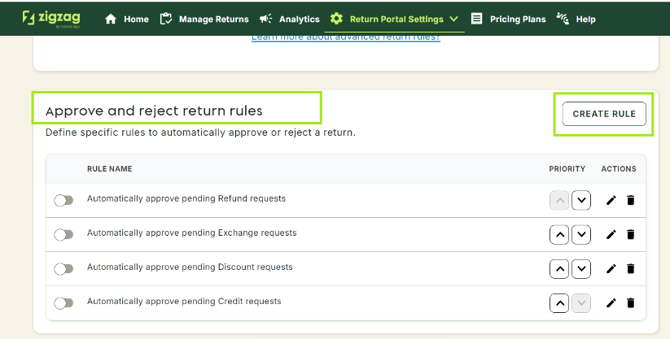
- In the Dynamic Workflows page, scroll down to Approve and reject return rules and click the Create rule button.
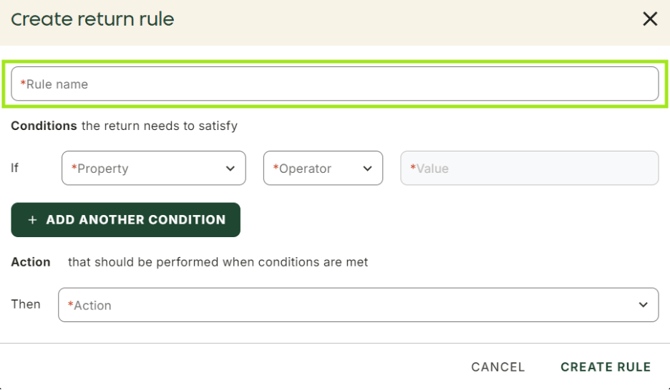
- Fill in the name of your rule in the Rule name field.
- Choose the Condition you want to apply to your rule.
Note: Multiple conditions can be applied to the same rule. Scroll down for information on condition options.
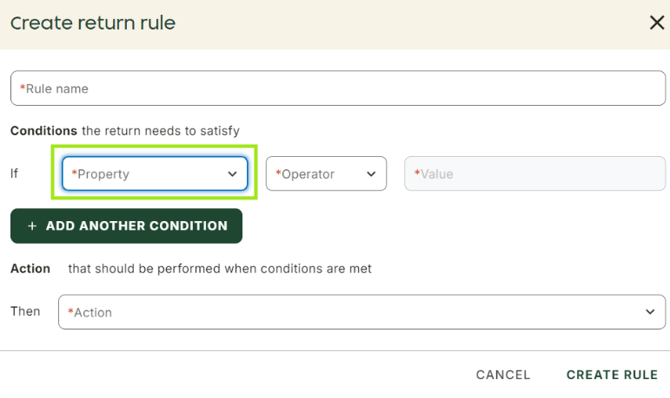
3.1. From the Property dropdown menu, select a property.
3.2. From the Operator dropdown menu, select an operator of the rule.
Note: The Operator dropdown options differ depending on the Property you choose.
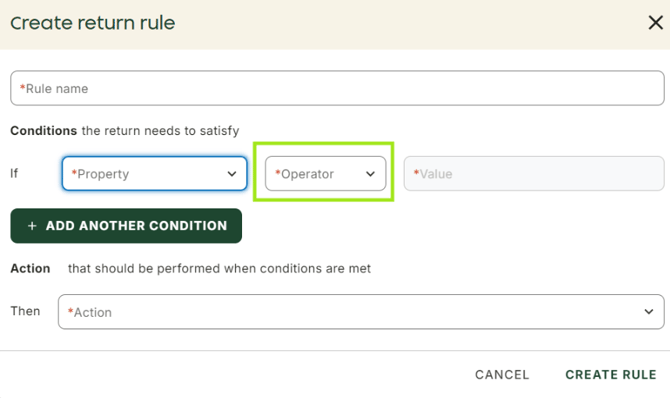
3.3. In the Value dropdown menu, select the values you want your rule to contain
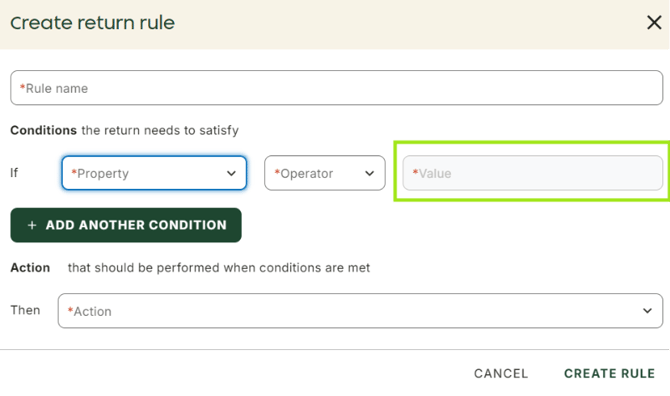
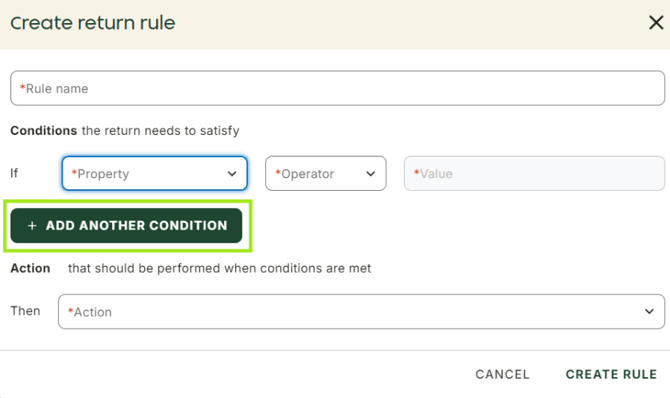
- (Optional) Click the Add another condition button if you want to add another condition to the rule.
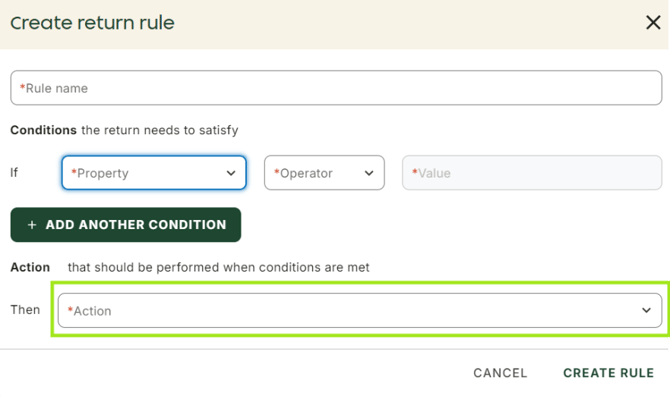
- Select the Action you want to apply to the conditions you've defined. From the dropdown menu, select Approve return or Reject return.
- After clicking on Create rule, it will appear on your Approve and reject return rules.
Well done, you've just created your first rule to help automate your return process.
Delete a rule condition
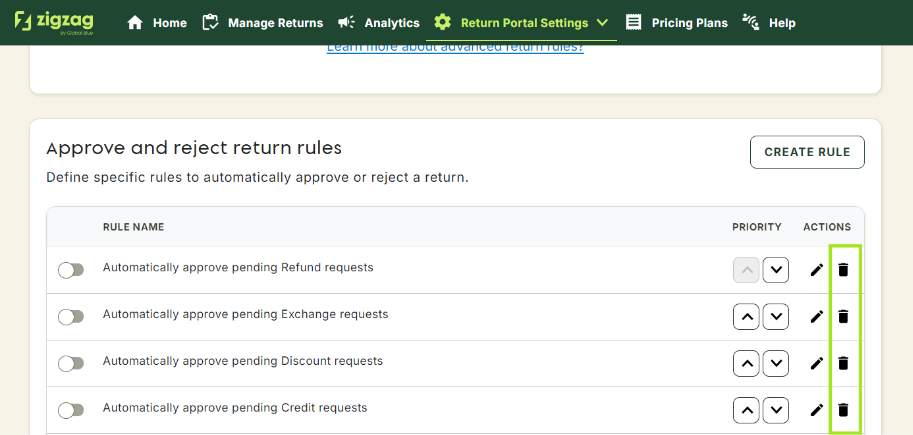
If you have multiple conditions in one ruleset, you can remove them by clicking the delete icon to the right of the rule.