Skip to content
English
  • There are no suggestions because the search field is empty.

Translations: Returns Portal, Return Reasons, and Customer Emails

Overview

The app allows you to provide a localized returns experience for your customers by translating key parts of the return journey into multiple languages.

You can translate:

  • Returns portal content and interface text
  • Return reasons displayed to customers on the returns portal
  • Customer emails sent throughout the return process

        This allows international customers to complete their returns in their preferred language while maintaining a consistent experience across the portal and email communications.


        Activating Languages

        Before translations can be customized, the desired languages must be activated.

        To activate additional languages:

        1. Open the Text Customization page.
        2. Select the Active Languages dropdown.
        3. Choose the languages you want to make available to customers.

              Please note:

              • English is enabled by default.
              • English cannot be deactivated.
              • Only activated languages can be selected by customers on the returns portal.
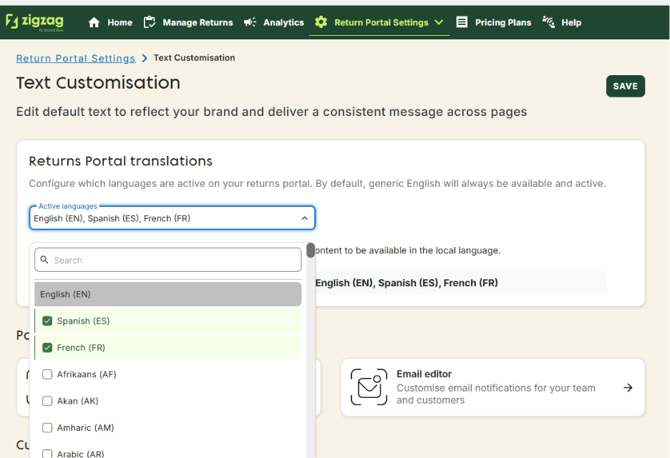
                

              [Screenshot – Active Languages]


              Customizing Returns Portal Translations

              Once a language has been activated, you can customize the text displayed throughout the returns portal.

              To edit translations:

              1. Open the Text Customization page.
              2. Select the desired language from the language selector within the Customize Translations section.
              3. Browse the available portal pages and text elements.
              4. Enter your custom translation in the Replace With column.

                      The app includes default translations for the following languages:

                      • English
                      • Spanish
                      • French
                      • Italian
                      • Portuguese
                      • Dutch
                      • German

                                    When one of these languages is selected, the corresponding default translations will be displayed automatically.
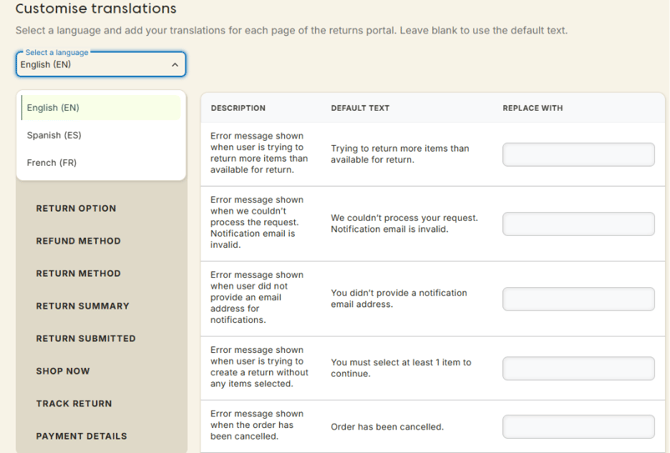
                                      

                                    [Screenshot – Text Customization Page]

                                    Languages Without Default Translations

                                    You can also activate languages that are not currently provided with default translations.

                                    For example, if you activate Polish:

                                    • The system will initially display the default English text.
                                    • You can manually enter Polish translations in the Replace With column.
                                    • Your custom translations will then be used on the returns portal.
                                    • If a translation field is left empty, the app will display the default translation for that text.
                                    • If a language does not have a built-in default translation, the English version will be used until custom translations are provided.
                                    • If a specific text string has not yet been translated, customers will still see meaningful content rather than a blank value.

                                          This allows you to support virtually any language required by your customers.

                                          Translation Fallback Behavior

                                          The app automatically falls back to a default translation whenever a custom translation is not available.

                                          Examples:

                                          • If a translation field is left empty, the app will display the default translation for that text.
                                          • If a language does not have a built-in default translation, the English version will be used until custom translations are provided.
                                          • If a specific text string has not yet been translated, customers will still see meaningful content rather than a blank value.

                                                This ensures that the returns portal remains fully functional even when translation work is still in progress.


                                                Translating Return Reasons

                                                Return reasons can also be translated independently from the general portal content.

                                                To customize return reason translations:

                                                1. Open the Return Reasons page.
                                                2. Select one of your active languages.
                                                3. Update the values within the Returns Portal Text fields.

                                                      Please note that the language selector only displays languages that have been activated on the Text Customization page.

                                                      The same translation principles apply:

                                                      • Supported languages will display default translations when available.
                                                      • Unsupported languages can be translated manually.
                                                      • Missing translations will fall back to the default translation.

                                                            Customers will see the translated return reason names when using the returns portal.
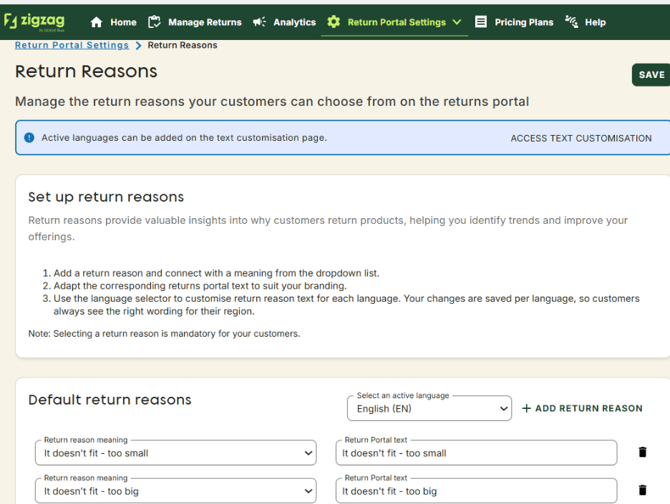
                                                              

                                                            [Screenshot – Return Reasons Page]


                                                            Translating Customer Emails

                                                            The app also allows you to localize customer emails sent throughout the return process.

                                                            To customize email translations:

                                                            1. Open the Emails Editor page.
                                                            2. Select an active language from the language selector.
                                                            3. Choose the email template you wish to edit.
                                                            4. Update the content as needed.

                                                                    Each language can have its own email content, allowing you to provide a fully localized communication experience.
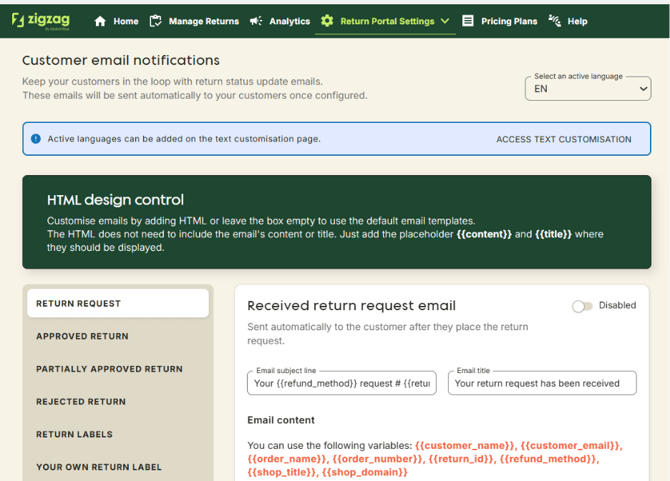
                                                                      

                                                                    [Screenshot – Emails Editor Page]

                                                                    How Language Selection Works

                                                                    Once languages have been activated and translations have been configured, the app automatically determines which language should be displayed to the customer.

                                                                    The language is selected based on the following factors:

                                                                    1. The language identified from the store URL or locale when the customer enters the returns portal.
                                                                    2. The customer's browser language if a store locale cannot be identified.
                                                                    3. The list of languages activated within the app.

                                                                          If a customer's preferred language is not activated, the portal will automatically fall back to English.
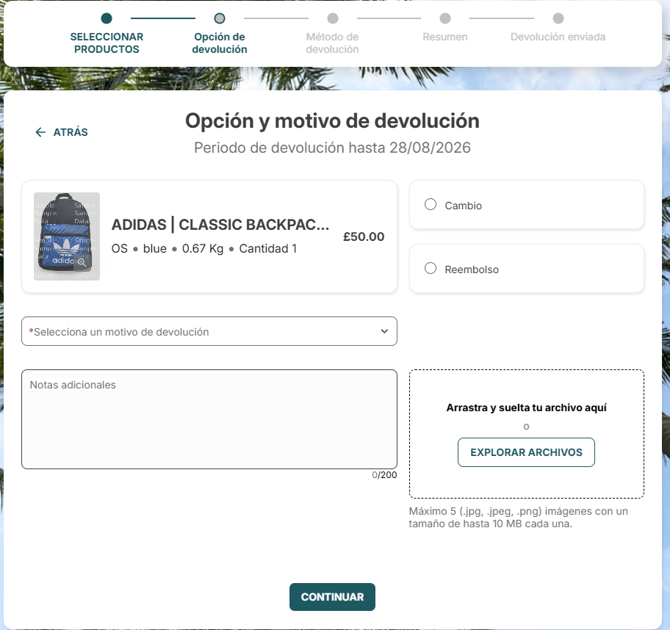
                                                                            

                                                                          [Screenshot – Translated Returns Portal]

                                                                          Customer Language Selection

                                                                          Customers can switch languages directly from the returns portal at any point during the return process.

                                                                          Once a language is selected:

                                                                          • The portal content is immediately refreshed in the selected language.
                                                                          • Return reasons are displayed using the corresponding translations.
                                                                          • The selected language is used throughout the remainder of the return session.
                                                                          • A customer opens the portal in English.
                                                                          • The customer switches the portal language to German.
                                                                          • The return is submitted in German.
                                                                          • Future return status emails will also be sent in German.

                                                                                When the return is submitted, the app stores the language that was active at the time of submission.


                                                                                Email Language Consistency

                                                                                To provide a consistent customer experience, the language used when the return is submitted is stored together with the return request.

                                                                                All future return-related emails for that return will use the same language whenever possible.

                                                                                Example:

                                                                                • A customer opens the portal in English.
                                                                                • The customer switches the portal language to German.
                                                                                • The return is submitted in German.
                                                                                • Future return status emails will also be sent in German.

                                                                                        If the language associated with an existing return is later deactivated, the app will automatically send emails in English.


                                                                                        Exporting and Importing Translations

                                                                                        If you need to translate a large number of strings, you can export all portal translations to a CSV file.

                                                                                        To export translations:

                                                                                        1. Open the Text Customization page.
                                                                                        2. Click Export CSV.
                                                                                        3. Download the generated file.

                                                                                              The exported file can then be translated using:

                                                                                              • Professional translation services
                                                                                              • Internal localization teams
                                                                                              • AI-powered translation tools

                                                                                                    After translation is complete:

                                                                                                    1. Return to the Text Customization page.
                                                                                                    2. Click Import CSV.
                                                                                                    3. Upload the translated file.
                                                                                                    4. Locate the desired text string on the Text Customization page.
                                                                                                    5. Enable the Hide Text checkbox.
                                                                                                    6. Open the Text Customization page.
                                                                                                    7. Click Preview Portal.
                                                                                                    8. Use a test order to navigate through the returns process.

                                                                                                          The app will automatically populate the corresponding translation fields.

                                                                                                          This feature is particularly useful when translating unsupported languages that do not have default translations available.

                                                                                                          Hiding Text on the Returns Portal

                                                                                                          In some cases, you may want to hide specific text elements entirely.

                                                                                                          To do this:

                                                                                                          1. Locate the desired text string on the Text Customization page.
                                                                                                          2. Enable the Hide Text checkbox.

                                                                                                              When enabled, the selected text will not be displayed on the returns portal.

                                                                                                              This can be useful when simplifying portal pages, removing unnecessary instructions, or tailoring the customer experience to your business requirements.

                                                                                                              NOTE: The feature has not been fully implemented yet.


                                                                                                              Previewing Your Translations

                                                                                                              Before making your translations available to customers, you can preview how the portal will appear.

                                                                                                              To preview the portal:

                                                                                                              1. Open the Text Customization page.
                                                                                                              2. Click Preview Portal.
                                                                                                              3. Use a test order to navigate through the returns process.

                                                                                                                    The preview allows you to verify:

                                                                                                                    • Portal translations
                                                                                                                    • Return reason translations
                                                                                                                    • Hidden text elements
                                                                                                                    • Overall customer experience
                                                                                                                    • Which portal page was updated
                                                                                                                    • Which new strings were added
                                                                                                                    • Which translations may require review

                                                                                                                            without affecting live customer returns.

                                                                                                                            NOTE: The feature has not been fully implemented yet.

                                                                                                                            New Translation Notifications

                                                                                                                            We continuously improve the returns portal to provide a better customer experience.

                                                                                                                            Occasionally, new features or interface updates may introduce additional text elements that can be translated.

                                                                                                                            When new translation strings become available, the app will display a notification on the Text Customization page indicating:

                                                                                                                            • Which portal page was updated
                                                                                                                            • Which new strings were added
                                                                                                                            • Which translations may require review

                                                                                                                                  This helps ensure that your translations remain complete and up to date without requiring manual investigation.

                                                                                                                                  Conclusion

                                                                                                                                  Providing a localized returns experience helps reduce customer confusion, improves completion rates, and creates a more professional experience for international shoppers.

                                                                                                                                  By translating your returns portal, return reasons, and customer emails, you can ensure customers interact with your returns process in a language they understand, resulting in a smoother and more consistent post-purchase experience.

                                                                                                                                  Whether you use the built-in translations, create your own custom wording, or translate content into additional languages, the app gives you the flexibility to deliver a fully localized returns experience that matches your brand and supports customers around the world.